If you are experiencing issues with your mk2 or mk3 keyboard and the integration with Logic, here are the main troubleshoot steps:
Make sure that everything is functional in the Komplete Kontrol standalone appliication.
For MK3 keyboards: Make sure you have the latest firmware installed and the latest version of Komplete Kontrol and the Hardware Connection Service.
Make sure that both Kontakt and Komplete Kontrol have full disk access:
https://support.native-instruments.com/support/solutions/articles/69000880000-how-to-enable-full-disk-access-on-macos
On Sequoia, there are a few more steps:
https://support.native-instruments.com/support/solutions/articles/69000879992-how-to-grant-audio-apps-access-to-your-local-network-on-macos-15-sequoia
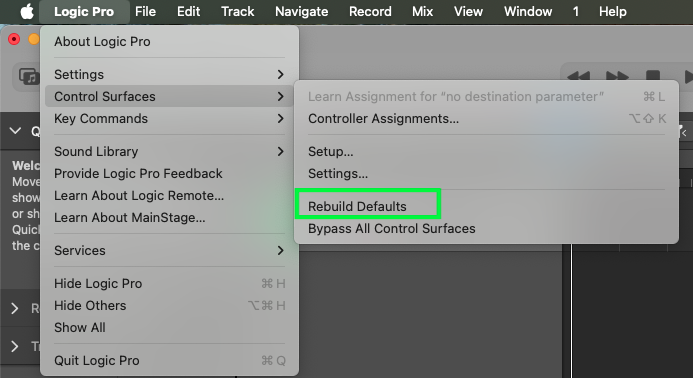
In Logic, go to Control Surfaces, choose Rebuild Defaults:
If that still doesn't work, close Logic and delete the following file:
Macintosh HD/Users/Username/Library/Preferences/com.apple.logic.pro.cs
Note: the User Library folder is hidden. To access it, click on Go in the menu bar and press down the Alt key. You'll now find the Library entry in the menu.
In some cases you might need to delete Logic's preferences, as outlined in this article from Apogee:
https://knowledge.apogeedigital.com/how-to-reset-logic-pro-trash-preferences
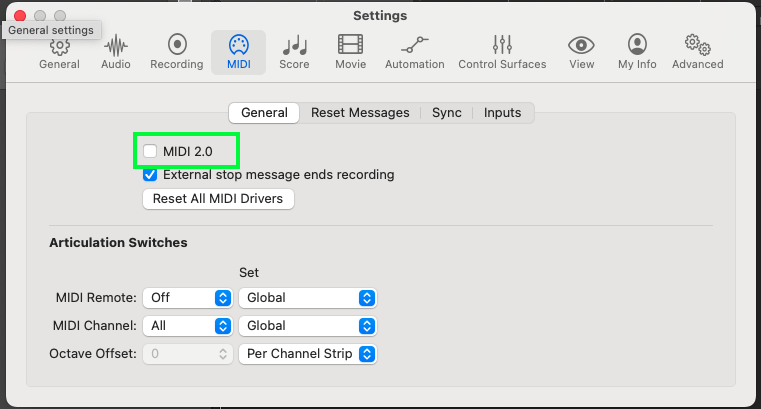
MIDI 2.0
In Logic, make sure you untick the MIDI 2.0 Box:
For MK3 keyboards there are a few more steps regarding MIDI 1.0/2.0:
https://support.native-instruments.com/support/solutions/articles/69000879650-kontrol-switching-an-s-series-mk3-keyboard-to-midi-1-0
If all the above fails, please get in touch with our customer support here:
https://support.native-instruments.com/support/home